Welcome on my SharePoint 2010 blog

Hello,

My name's Roy. I'm a dutch SharePoint & BI consultant/architect at Advantive B.V. At this moment I'm busy with some big SharePoint 2010 projects in The Netherlands. In all the projects I've got different roles, like: Business consultancy, Lead Consultant, Architect (logical and technical), Development and Teaching/courses.

Products where you can ask me about are: SharePoint, Visual Studio, SQL Server, PowerPivot, Analysis and Reporting Services, Visio Services, InfoPath, PerformancePoint Services, Team Foundation Server, Office line.

I love to work and to write about Microsoft SharePoint 2010 so, feel free and read/comment my Blogs!

Greetz.

Showing posts with label secure store. Show all posts

Wednesday, October 27, 2010

Secure Store Service Application in SharePoint 2010 (and BCS example)

Intro

The Secure Store Service replaces the Microsoft Office SharePoint Server 2007 Single Sign On feature. Secure Store Service is a shared service that provides storage and mapping of credentials such as account names and passwords. It enables you to securely store data that provides credentials required for connecting to external systems and associating those credentials to a specific identity or group of identities. It is very common for solutions to try to authenticate to an external system in which the current user is known differently or has a different account for authentication. In such cases, Secure Store Service can be used to store and map user credentials required by the external system. You can configure Secure Store Service so that multiple users can access an external system by using a single set of credentials on that external system.

For example, if a user named Fred has one account on the server that is running SharePoint Server and another in a CRM application, the Secure Store mechanism enables his CRM credentials to be stored with his user profile in SharePoint Server. As a result, if he uses a Microsoft Business Connectivity Services (BCS) solution in SharePoint Server to obtain data from the CRM application, SharePoint Server looks up the Secure Store Service database on the server and provides his credentials to CRM. In in this manner, Fred automatically logs on to the CRM application without having to log onto the CRM application separately.

To provide similar functionality on Microsoft Office clients, Business Connectivity Services provides a Secure Store provider that uses the Windows Credential Store.

In addition, SharePoint Server enhances the Secure Store Service functionality to include a pluggable secure store mechanism that enables you to use alternate secure store providers.

Installation/configuration

First make sure that the BCS service (for the example in this blog) is started and a BCS Service app is created. Also make sure that the Secure Store Service is started (Central admin --> services on server).


1:
Go to the central administration and click under application management on "Manage service applications".

2:
The list with available service applications becomes visible. Click in the upper left corner on: New/Secure Store Service Application.


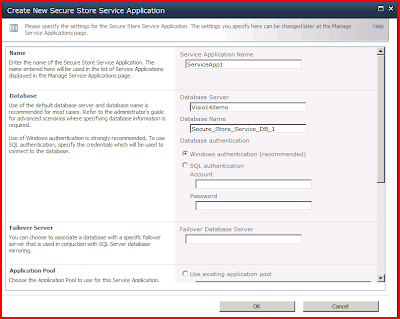
After clicking on the link a dialog (SPDialog) appears:


3:
I'll advise you that (for security reasons) you choose for a separate/isolated application pool for the secure store service app (sss) .

4:
Choose a database server and name for the sss and click on OK, the sss and the sss proxy will be created. After clicking on OK you get the message to generate a key first before you can use the service application. This key will be used to encrypt credentials.



5:
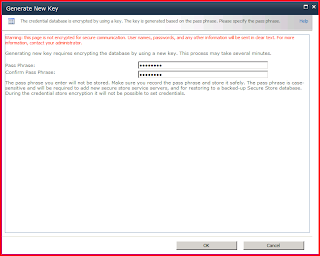
Create the key by clicking in the ribbon on <Generate new key>

6:
The database will also be encrypted with a passphrase key, enter the key and confirm it:


7:
Initially there are no target application in the secure store. To create one click on <New>. An new window will be loaded:


I've chosen a ID called: AdventureWorksID, this is the name of my external system that I want to connect to in my BCS solution.

There are two primary types for creating a target application:

  • Group, for mapping all the members of one or more groups to a single set of credentials on the external data source.
     
  • Individual, for mapping each individual to a unique set of credentials on the external data source.
I've chosen "Group" in this example. Click <Next> and the following screen will appear:


In the screen above you can add fields that are necessary for the credential part. In the <Field Name> textboxes choose you're own label that you want to choose when a sss administrator needs to enter the credentials. If you're credentials are not windows credentials, change this in your dropdown box. You can check the checkbox "Masked" if you want your text to be masked.

8:
Click on <Next> and fill in a administrator for the target application and a member if necessary and click <OK>. You're target application is now created.

9:
Click on your new target application and after that click on <Set credentials>

10:
Enter your credentials in the next screen and click <OK> (notice that the labels of the field names are changed)


You also have the possibility to publish a sss when you're working with multiple farms. To do this click on the secure store service application in <manage service application screen> and click in the ribbon on <Publish>, the following screen will open:


11:
Select the check box <Publish> and copy the urn. For an explanation how to use a service application cross farm see my blog: Metadata cross farm BLOG.

Shortened Real-time Example

1:
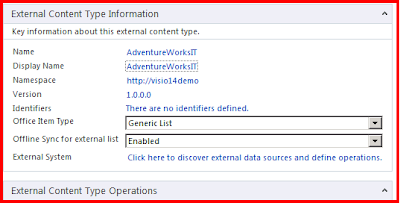
Create an external content type with SharePoint Designer. Give the external content type a name and click on the link (see last link in picture below) to discover external datasources:


In the popup box fill in your external database server name and database name. After that, choose: "Secure store application Id" and fill in the ID of the target application you just created:


Click <OK>, choose your data and publish/save your external content type to the BCS metadata store.


From the SharePoint 2010 UI create a list based on the external content type you just created and your list is now available in SharePoint based on the Secure Store Credentials.

PS: @SPJanet: Hope this is a worthfull blog for you, otherwise please let me know!

Monday, April 26, 2010

Performance Services 2010: Monitor, Analyse, Plan!

Building Performance Point Dashboards.

Within a few days the new RTM version of SharePoint 2010 (SP2010) will finally be launched! As we already know from the Beta and RC version: SP2010 will bring us a lot of new and cool stuff!

One of these  new things is: Microsoft Performance Point Services 2010 (PPS2010). In the 12 Wave it was a separate product called: Performance Point Server 2007. Within the 14 wave it is integrated in the SP2010 product stack as a separate Service Application.

With PPS2010 you can do your performance management based on underlying datasources. PPS2010 can be split into three parts:

• Monitoring; What is happening and what is happened?
• Analysis; Why has it happened?
• Plan/forecast; What is going to happen/next steps, what do I want to happen?


To answer the above questions you can generate PPS2010 functionalities like:
(Balanced) Scorecards, KPI's, analytical reports (with drilldown) and trend analysis.


Example
Withing this blog we will show you an example of the easyness of creating a
Performance Point dashboard within PPS2010/SP2010.


Prerequisites
• SharePoint 2010 Enterprise
• SQL Server 2008 (x64)
• Contoso Retail DW SQL2008 Example DB (see: codeplex.com or Microsoft.com)
• Business intelligence center template created in SharePoint 2010, from this
   site you can start the Performance Point Dashboard Designer
• A Secure Store Service Application with a master key and application key set.
• A PPS2010 target application ID in Secure Store service application with the
   the credentials set for this target application ID


Steps
1:
From the business intelligence center start the Dashboard Designer. Click on
create dashboards and then click start using performance point services.(see picture below).


2:
Click on the button "Run dashboard designer". The Performance Point service will now download and open the designer application from the SharePoint Server.


3:
The next time you can open the dashboard designer from the Start-menu.


4:
The Dashboard designer start page will look like this:


5:
Make sure that you first created a connection to the Contoso Retail DW in the dashboard designer. This will not be shown in this example.


6:
The next step is to create the scorecard where the KPI's will be integrated. On the create tab click Scorecard. Choose for Microsoft - Analysis Services


7:
Choose the Contoso Retail DW Datasource and click next


8:
Select Create KPI's from SQL Server Analysis Services measures and click Next


9:
Click Add KPI (this will give you the possibility to add an existing KPI from the cube. If you choose for Select KPI you can choose a KPI you created in this workspace. Rename the name of the KPI to: Sample_KPI


10:
In the next screen select a dimension, choose Sales Territory country


11:
Next, choose a measure filter for the target and the actual of the KPI, Choose Greater China as actual and India as target.


12:
In the Add member columns screen, check <Add column members> and choose the date.calender Year field in the dimension textbox. In the member textbox select the years 2008 and 2009


13:
Choose the location in SharePoint (document library) where you want to place your Dashboard content, click Next.


14:
Click Finish and rename the scorecard to: Sample_Scorecard. Your scorecard should look like this:


15:
In the details pane (right) open the dimensions group and pick the field <Category Name> and move it to the right hand side of the <Sample KPI> in the scorecard.


16:
A Screen opens, right click <All Products> and choose Autoselect members --> Select Children. All the underlying categories will dynamically be shown in the scorecard.


17:
Click update in the edit-tab and the scorecard should look like the following:


18:
When you created your first scorecard, we will go further by creating an analytic report, click on the create-tab on analytic chart. You can see that you can also choose an Excel Report or Reporting Services Report.


19:
Choose the Contoso Retail DW Datasource and click finish


20:
Rename the report to: Sample_Pie


21:
Drag the dimensions, measures or named sets you want on to the report designer as shown in the picture below:


22:
Now you can change your report type to: Pie Chart by right clicking on the report


23:
Create another Analytic chart with report type: Line Chart. Choose the dimensions and measures that areshown below:


24:
Call the chart: Sample_Line


24:
On the Create-tab, click KPI details. Rename this one to Sample_KPIDetails.


25:
The last step is to create a dashboard and drag and drop all the items we just created on the dashboard. On the Create-tab click Dashboard and choose 2 zone dashboard. In fact: you're now are going to create a SharePoint site with some webparts in two webpart zones.


26:
Give the page a name, e.g.: Sample_Dashboard. Right click on the dashboard and choose add below. You now will create a zone below, after that click in the new zone and choose: split zone. You now have created a four webpart site.


27:
Now drag and drop your items from the details pane to the dashboard until your screen looks like the following:


28:
Keep your mouse on the scorecard part of the dashboard and drag the Member Unique Name to the Piechart part, you've now created a connection between the both parts.


29:
Drag the Cells context field to the KPI details part of the dashboard, after you've done with this you're dashboard should look like the following:


30:
The most exiting part!! Right click on the dashboard in the workspace browser and choose: Deploy to SharePoint. You're new dashboard will now be uploaded to SharePoint (it creates a new page, with the necessary webparts and publishes all your items to SharePoint). You're Dashboard should look like this:


31:
If you click on Performance Point Content you can see the items you've just created.


Congratulations! You've just had you're first PPS2010 experience!

Thursday, April 8, 2010

Visio Services and SharePoint 2010 - A great link!

With the new product of Visio Services 2010 and it's integration with SharePoint 2010 you now have the possibility to integrate your own Visio diagrams within your own SharePoint 2010 environment. But that's not all, you can also make dynamic Visio diagrams by connecting the Visio Shapes to external datasources.
This blog shows an example of how to create a Visio diagram with external data and publish it to SharePoint 2010.

Prerequisites:
- Visio Services 2010
- SharePoint 2010
- An external datasource
- Target application ID created in Secure Store Service App
- Target application ID connected to Visio Service App


1:
Open Visio and create your own Visio diagram, I created a diagram which shows revenue per country per employee. You can also make a diagram which visualizes your network infrastructure or shows a specific process (flowchart) of your company.


2:
Save the Visio diagram as a "Web drawing"


3:
New in Visio 2010 (Professional and Premium versions) is the Data-tab, click on this tab and observe the new possibilities!


4:
Click on Link data to shapes, choose your datasource (I've chosen SQL Server) and select the data/columns you want to use in your diagram (the data you want to link to your Visio Shapes).


5:
When you successfully created a connection you see the External Data Window below your Visio diagram with your chosen resultset.


6:
If you're dataset is correct, click in the datatab on Data Graphics and create an new data graphic.


7:
Click in the top left on new item (image below) and now you can add some treshholds and checks. These items will be connected to your data graphics item you just created. See examples below:


Example 1

Example 2

Example 3

8:
Now it's time to connect the data to the Visio shapes, there are two ways to do this:

- Select a shape in the Shape selector en pick a specific row in de external data window and drag this row to the diagram.

- Drag a shap to the diagram en connect a row to the shape afterwards
After you connected your rows your diagram could look like this:


9:
On your right hand side you can see the Shape data window (see picture above)


10:
Now we're ready to save (share) it to SharePoint, click on file and the backstage appears, choose share and choose a Sharepoint library where you want to store the Visio Web Drawing.


11:
Open a SharePoint site and edit the page, choose to insert a new webpart and choose Office client applications, and Visio Web Access. Click add to add the webpart to your site.


12:
In the tool pane of the webpart, select your new Visio diagram, change some settings if you think it's necessary. Click apply and ok in the webpart-properties. Check-in your page and your SharePoint site with Visio could look like this:


13:
Visio ask you if you want to refresh the underlying data when the diagram refreshes. Click on "Refresh always" if you want to do that.

Congratulations: Your first Visio integration with SP2010 is a fact!